Late payments are the single biggest cash flow killer for small businesses and freelancers. Not because clients refuse to pay — but because the invoicing process is slow, inconsistent, and easy to lose track of. A quote goes out in an email. An invoice is raised in Excel a week later. Payment terms aren't clear. The client pays part of it. Nobody records the partial payment. Three weeks later you're not sure if the invoice is paid or outstanding.
Good invoice software doesn't just generate PDF invoices. It manages the complete journey from the first quote to the final payment collected — with clear status tracking, partial payment support, overdue flagging, and reporting that tells you exactly where your money is at any moment.
Who this guide is for: Freelancers, small businesses, service providers, and consultants who want to replace manual invoice spreadsheets with a proper system — one that handles quotes, delivery notes, payments, and reports without needing an accountant to set it up.
The Invoice Problem Every Small Business Knows
The typical freelancer or small business invoicing workflow looks something like this: quote a job in an email, receive a "yes go ahead" reply, raise an invoice in Excel or Google Sheets, save it as a PDF, email it with payment details buried in the body text, and then wait. Maybe follow up once. Maybe forget to follow up. Maybe get paid. Maybe not.
The Manual Invoice Trap
Manually maintained invoice spreadsheets fail in predictable ways. The status column has inconsistent values — "paid", "PAID", "Paid in Full", "done" — so filtering doesn't work. There's no record of when an invoice was sent or opened. Partial payments are noted in a comment that gets lost. And the moment you have more than twenty active invoices, building an accurate picture of your outstanding receivables requires a dedicated effort.
Chasing Late Payments
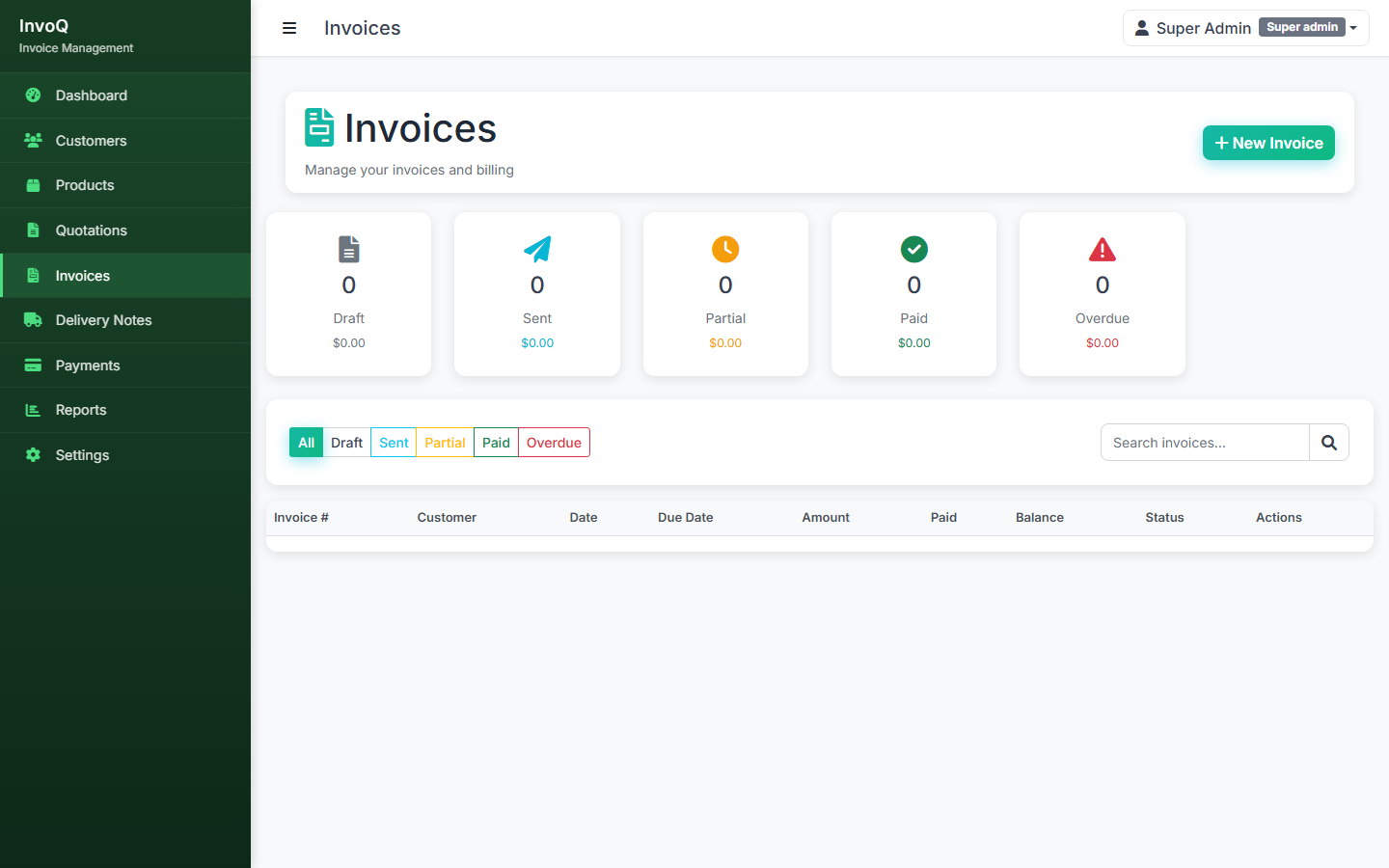
Late payment chasing is awkward, time-consuming, and often falls through the cracks when you're busy delivering work. The problem is compounded when you're not sure whether an invoice was received — was the email delivered? Did it land in spam? Did the client even see it? Invoice software with status tracking — Draft, Sent, Partially Paid, Paid, Overdue — eliminates this ambiguity entirely.
The Quotation Gap
Many small businesses quote verbally or via casual email and only create a formal document at the invoice stage. This creates disputes at payment time — the client remembers a different price, a different scope, a different delivery timeline. A professional quotation, sent before work begins and accepted by the client, creates a paper trail that makes invoicing straightforward and disputes rare.
What Good Invoice Software Actually Does
Good invoice software manages a complete end-to-end workflow — not just the invoice document itself. InvoQ — BYDCRM's invoice and quotation manager — follows this four-stage process:
Each stage is tracked as a distinct record. A quotation has its own approval status. An invoice — whether converted from a quote or created independently — has its own payment tracking. A delivery note records exactly what was shipped and when. A payment record captures the amount collected, the date, and the remaining balance. Nothing is lost between steps.
InvoQ handles the following in a single platform:
- Customer directory — full contact details, billing addresses, and complete transaction history per client
- Product catalog — unit prices, tax rates, and descriptions for quick line item entry
- Quotations — professional quotes with discounts, expiry dates, and Draft → Sent → Accepted status
- Invoices — convert quotes or create independently, with tax, discounts, due dates, and recurring invoice support
- Delivery notes — issued against invoices with carrier, tracking number, and delivery status
- Payments — full and partial payment recording with automatic invoice status updates
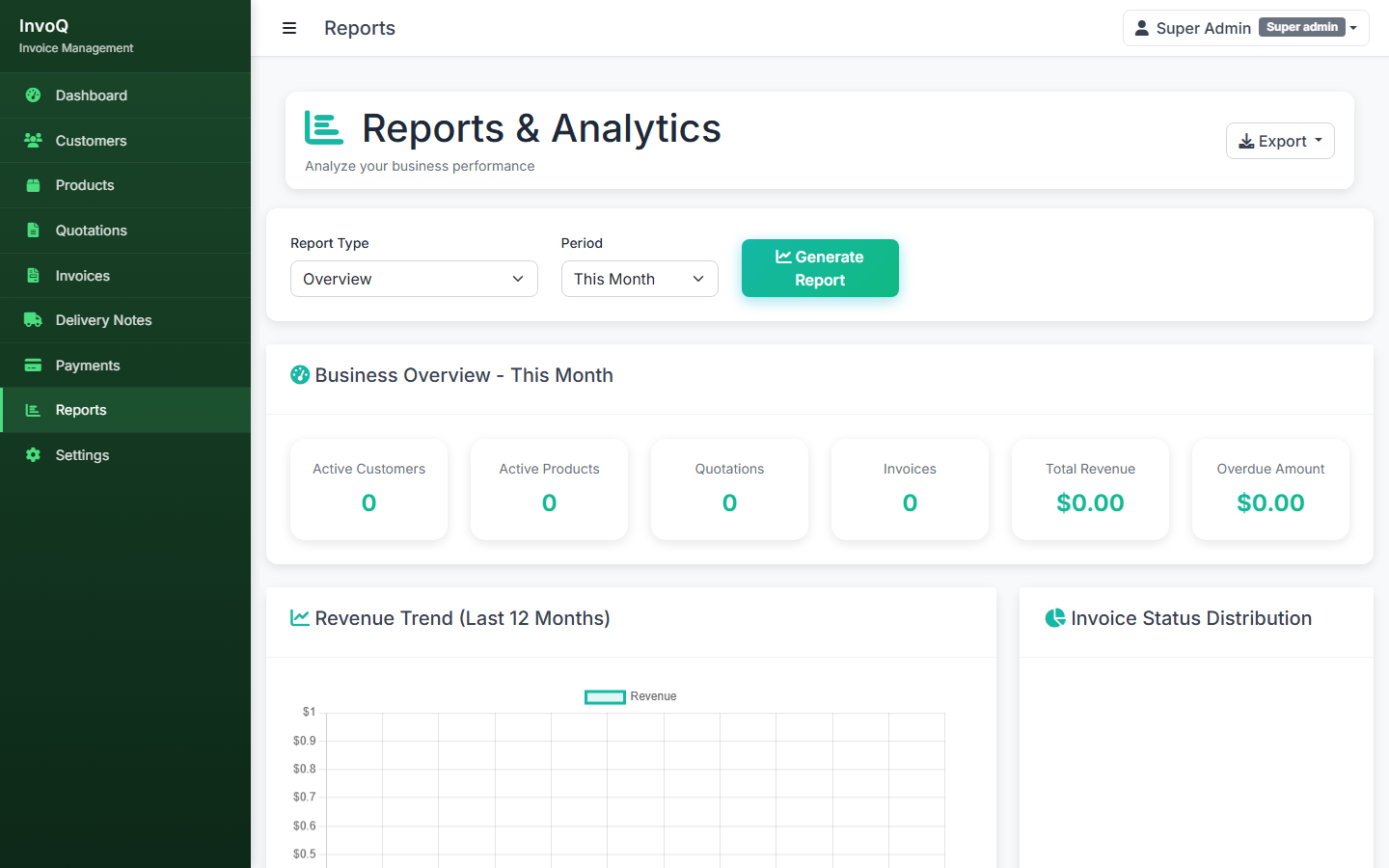
- Reports — revenue by period, outstanding invoices, collection rates, and top customers
- Settings — company name, logo, invoice prefix, tax rates, currency, and payment terms
Why the Quotation Step Matters
A professional quotation does more than communicate a price. It sets expectations, establishes scope, and creates a legally defensible record of what was agreed before any work begins. Businesses that send formal quotes consistently report fewer invoice disputes and faster payment turnaround — because the client has already seen and accepted the numbers.
Quote Builder in InvoQ
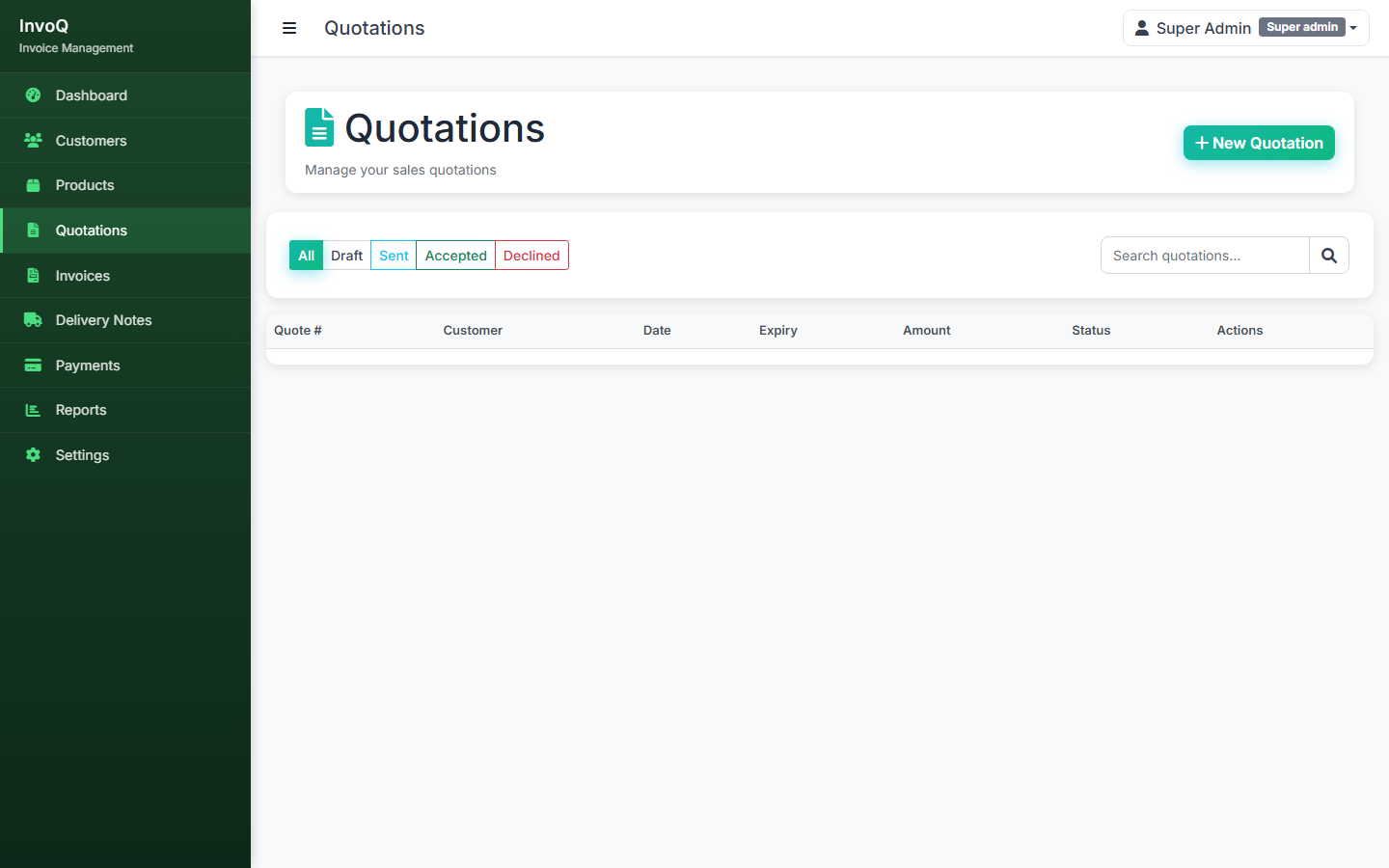
InvoQ's quotation builder lets you add line items directly from your product catalog — unit prices populate automatically, so there's no manual price lookup or typo risk. You can apply line-level discounts, a global discount, and configure the applicable tax rate. Each quote has an expiry date, preventing stale quotes from being accepted after your costs have changed.
The status workflow — Draft → Sent → Accepted — means you always know where each quote stands. When a client accepts, the conversion to invoice is one click: all line items, client details, pricing, and tax carry across automatically.
Real impact: Businesses that send formal written quotes before starting work collect payment an average of 11 days faster than those who quote verbally and invoice retroactively — primarily because the client has pre-approved the amount and the payment feels expected rather than surprising.
Delivery Notes: The Forgotten Bridge Between Invoice and Payment
Most small business invoicing tools skip delivery notes entirely. For product-based businesses, this is a significant gap — because a delivery note is the proof of delivery that underpins your right to be paid.
In InvoQ, delivery notes are issued against specific invoices and capture:
- The carrier and tracking number
- The delivery date
- The delivery status (Pending, In Transit, Delivered, Failed)
This creates a complete paper trail: the client received a quote, accepted it, was invoiced, goods were dispatched with a tracked shipment, and delivery was confirmed. Every step is recorded and linked. When a client queries payment timing, you can pull the full history in seconds — quote date, invoice date, dispatch date, delivery date, and payment status.
Payment Tracking Without the Spreadsheet
Payment tracking is where most manual systems completely break down. Recording a payment in a spreadsheet requires discipline — updating the status column, noting the amount, calculating the remaining balance if it's partial. In practice, it rarely happens consistently, and the result is uncertainty about which invoices are actually cleared.
How InvoQ Handles Payments
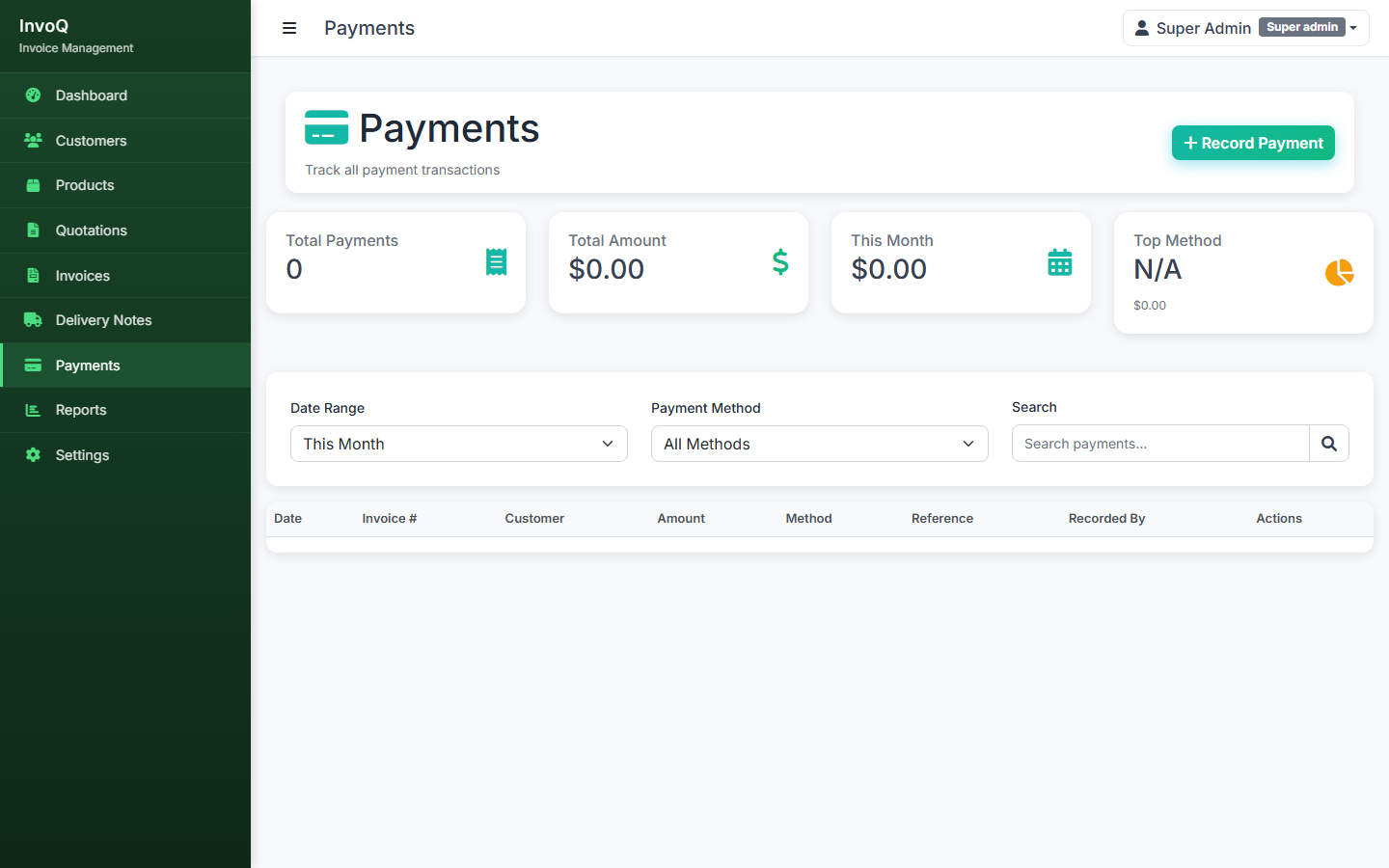
InvoQ's payment module lets you record payments directly against an invoice. When a payment is recorded, the system automatically:
- Calculates the remaining balance
- Updates the invoice status — to Partially Paid if there's a balance remaining, or Paid if fully settled
- Flags any invoice that passes its due date without full payment as Overdue
The payment history for each invoice is preserved in full — so if a client pays in three instalments over six weeks, you can see every payment, the date it was recorded, the amount, and the running balance at each point.
Collection Rate Reporting
The reports module shows your payment collection rate — the percentage of invoiced revenue that has been collected within your standard payment terms. This single metric tells you more about the health of your receivables than any spreadsheet. A falling collection rate is an early warning of cash flow pressure; a rising rate confirms your payment chasing is working.
What to Look For in Invoice Software
Not all invoice tools are equal. Here's a clear breakdown of must-haves versus nice-to-haves for a small business or freelancer:
| Feature | Priority | Why It Matters |
|---|---|---|
| Professional invoice creation | Must-have | Branded invoices with your logo, number, and terms |
| Invoice status tracking | Must-have | Know which invoices are sent, paid, or overdue |
| Partial payment support | Must-have | Essential for milestone billing and retainer clients |
| Overdue flagging | Must-have | Automated overdue detection saves manual checking |
| Quotation builder | Must-have | Quotes reduce disputes and speed payment |
| Customer transaction history | Must-have | See everything for a client in one place |
| Tax & discount configuration | Must-have | Accurate tax handling protects you at accounting time |
| Delivery note tracking | Nice-to-have | Essential for product businesses; less critical for service-only |
| Recurring invoices | Nice-to-have | Saves time for retainer and subscription clients |
| Client portal / online payment | Nice-to-have | Useful if clients prefer self-service; not always needed |
See InvoQ in Action
Get a live walkthrough of the full quote-to-payment workflow — quotations, invoices, delivery notes, and payment tracking in one platform.
Explore InvoQ →How InvoQ Works for Freelancers vs Small Businesses
InvoQ is designed to be useful at both ends of the small business spectrum — a single freelancer with a handful of clients, and a growing business managing hundreds of invoices per month.
For Freelancers
As a freelancer, your needs are straightforward: create professional quotes quickly, convert them to invoices without re-entering data, know at a glance which invoices are outstanding, and chase late payments with a clear record in hand. InvoQ handles all of this. You don't need to configure complex tax rules or multi-currency settings if you don't need them — the defaults work out of the box for the most common freelance billing scenarios.
For Small Businesses
As your business grows, InvoQ grows with it. Multiple users can work in the system with appropriate access. Product catalogs handle large SKU lists. Delivery notes track physical goods. The reports module scales from "how much did I earn this month" to "which clients generate the most revenue and which have the slowest payment cycles". Settings let you configure your invoice prefix, payment terms, currency, and tax rate to match your business exactly.
Getting Started in Under an Hour
InvoQ is designed to be operational quickly. Here's what the typical setup looks like:
Step 1: Configure Your Company (10 minutes)
Add your company name, logo, invoice number prefix, default tax rate, currency, and standard payment terms. These settings appear on every document you produce from InvoQ.
Step 2: Add Your Clients (15 minutes)
Import or manually add your active client list. Each client needs a name, contact email, and billing address. Historical transaction data can be added later — you don't need it to start issuing new invoices.
Step 3: Set Up Your Product Catalog (15 minutes)
Add your standard services or products with unit prices, descriptions, and tax categories. Even a partial catalog speeds up quote and invoice creation dramatically.
Step 4: Issue Your First Quote or Invoice (10 minutes)
Create a quotation for an active client, add line items from your catalog, set an expiry date, and mark it Sent. Or skip straight to an invoice if you're billing for work already delivered. From this point, InvoQ is your system of record.
Most users complete the full setup in under an hour and issue their first professional document on the same session. There's no data migration required to get started — you can onboard gradually, adding historical records as time permits.
Frequently Asked Questions
Bottom Line
The right invoice software pays for itself in the first month — through faster payment collection, fewer disputes, and hours of admin time saved. The wrong choice means manual workarounds, inconsistent records, and the nagging uncertainty of not knowing exactly where your receivables stand.
For freelancers and small businesses, the essentials are clear: professional quotations, one-click invoice conversion, partial payment support, overdue flagging, and reporting that gives you an honest picture of your cash position. Everything beyond that is a bonus.
If you're ready to replace the spreadsheet, InvoQ is built for exactly this — operational in under an hour, and designed to grow with your business.